Email templates
In Randio Open Templates
A template designs all three surfaces of an offer together: the catalog page, the email and the storefront block. The Email tab of the template editor is where the Outreach email is designed. The button in the email opens the customer's catalog page, built from the same template.
Content
Two sends share one design and have their own wording: First send and Reminder. Each has a Subject Line, Preview Text, Body Text and CTA Button. Merge tags such as {{name}}, {{shop}}, {{expiry_date}} and {{ends_in}} fill in per customer; the field help lists them all.
{{discount_offer}} words the customer's own discounts: "Up to 40% off" when they spread widely, "At least 20% off" when the lowest is close to the highest, and "20% off" when every product shares one. With no discount in the catalog it is left out, along with the full stop after it. The default Preview Text for both sends is {{discount_offer}}. Ends in {{ends_in}}.
For your own wording, a condition picks the text by the numbers: [(max_discount >= 40){Up to {{max_discount}}% off} || {Save on your picks}]. A condition can test max_discount, min_discount, product_count, days_remaining or hours_remaining. Each || adds a branch, and the last branch without a condition is optional. If the editor cannot read a condition, it says why under the field, and the template does not save until it is fixed.
A campaign can override the subject, preview text and body for its own emails, not the button. Leave a field blank to use the template's copy. The reminder has its own overrides; see Reminder emails.
Design
Five settings follow the page design until you set them: text colour, font, body font size, background colour and the product card border. Clear one and it follows the page again. The CTA Button colour is the page's add-to-cart colour until set, and the banner is the page hero until you pick an image or none. The sections:
- Theme: font, text color, body font size and weight, background color, padding scale.
- Header: brand display as logo or store name; divider or background style.
- Banner: the page hero, a custom image, or none; height.
- Product card border, and the CTA Button color, text color and rounded corners.
- Countdown: off by default. A countdown or the end date, its position and colors, whether seconds show, a timer background matching the header, the hero or the email background, and the date format. Apple Mail loads images when the email arrives and Outlook for Windows cannot play a timer, so you choose what those readers get instead: time left, end date, or no countdown.
- Footer: store name and background. The unsubscribe link is always present.
Countdowns in Apple Mail and Outlook
A live countdown is an image the mail app fetches when the email is opened. Apple Mail's privacy protection fetches every image when the email arrives instead, so a timer would stop at the arrival time, and Outlook for Windows cannot play the timer at all. Those readers get a still version, chosen under Countdown → Apple Mail & Outlook:
- Time left, the default: the time that was left when the email arrived, such as "3 days", with the end date beneath it.
- End date: the day and time the offer ends. It stays right however late the email is read.
- No countdown.
If many of your customers read on an iPhone or use iCloud addresses, consider showing the end date in the main design as well, so everyone sees the same thing. The end date also suits offers that run for a week or more, where a timer counting days adds little.
Product cards
The product grid is built from the customer's catalog at send time: image, title, original price, discounted price and discount label. Nothing is placed by hand. A product that cannot be offered at that moment (sold out, under a stock minimum, or not sold in the customer's country) is switched out before the first email, so the email never shows a card the customer cannot buy.
Preview and test
The editor previews at desktop and phone widths and lets you set the number of products in the sample catalog. Send Test Email sends the design to the store owner's address or a custom address. Test sends are limited to 20 per store per hour, are refused while your sending is paused, and an address that bounced, complained or unsubscribed before is refused.
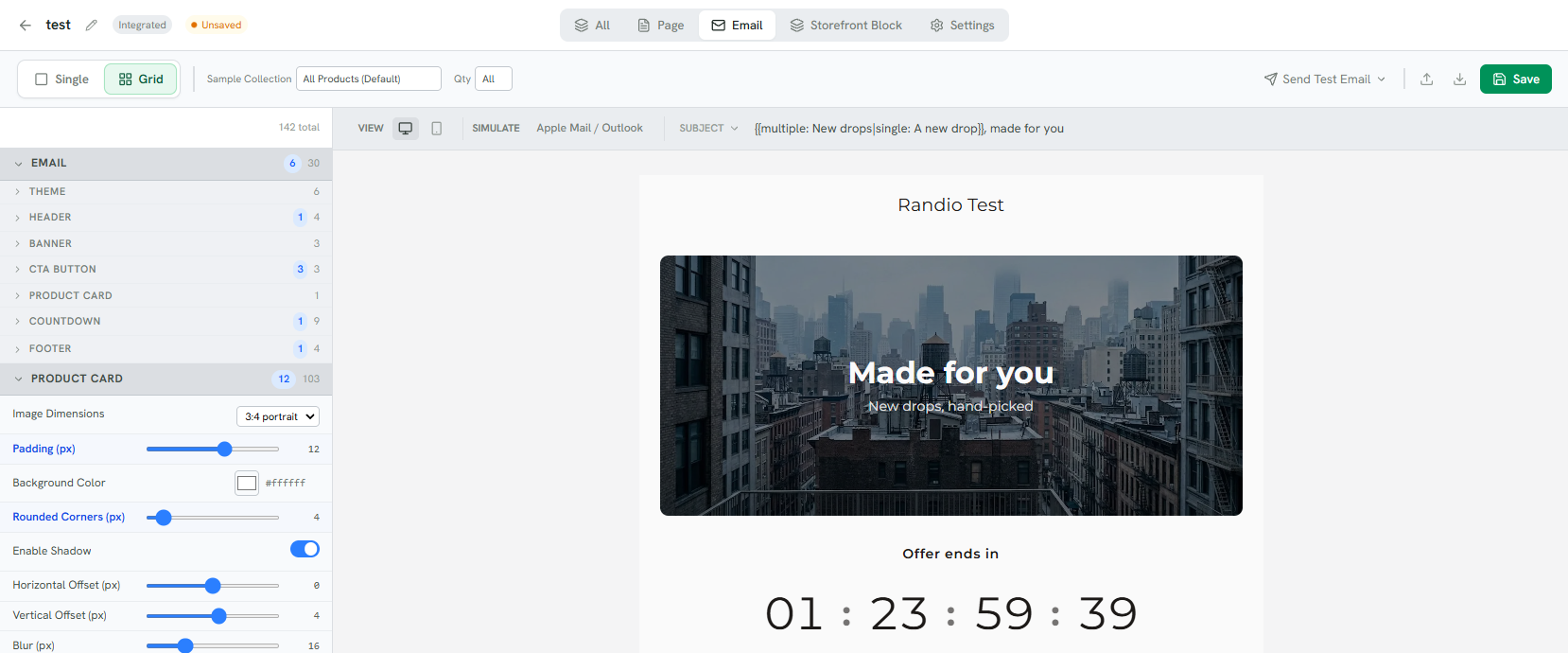
1 The email's sections; the count is how many settings you changed.
2 Preview at desktop or phone width, simulate a mail client, and pick the subject to preview.
3 The email as it will send, with sample products.
4 Send Test Email.
Who the email comes from is in Email configuration. See also Page templates.