Storefront block
In Randio Open Settings → Sync → Deals block Open Templates
The Randio block is a theme section block, Randio Promo Block, that shows a visitor's catalog on your store. It renders only while a Storefront campaign is running. Outreach campaigns do not use it.
Adding it
- Settings → Sync → Deals block, then Add to Theme, which opens the theme editor. Or in Shopify go to Online Store → Themes, click Customize on your live theme, and under Apps add Randio Promo Block to a section.
- Drag it into position. The block is empty in the theme editor; customer offers only render on the live storefront.
- Click Save.
The Deals block panel then shows In your theme, and names the templates the block was found under. If it reports "Not found in your theme", use Re-check after saving the theme.
Randio reads your published theme directly, so the check covers every template and section group you have, including custom templates, alternates such as a "deals" page template, your header and footer, and your account pages. A password-protected storefront does not affect it. Two things it cannot tell you. First, it only sees your published theme: a block added to a draft theme is invisible until you publish it. Second, and this is why the panel says "in your theme" rather than naming pages: a theme template is not a page. One template can serve many addresses or none at all, so Randio can tell you the block is in your theme and which templates hold it, but not which page your shoppers will actually land on and see it.
Putting the block on your home page is strongly recommended. That is where new visitors arrive, and it is the one placement Randio can also confirm is really rendering. For any other page, paste its address under Verify block placement and Randio will load that page and look for the block on it.
The setup checklist never holds you here: the Deals block step offers I've added it and Skip for now, and either one lets you carry on. Skipping is a fair choice — Outreach campaigns email the catalog link and never use the block. Randio keeps checking in the background and shows a normal green tick once it finds it.
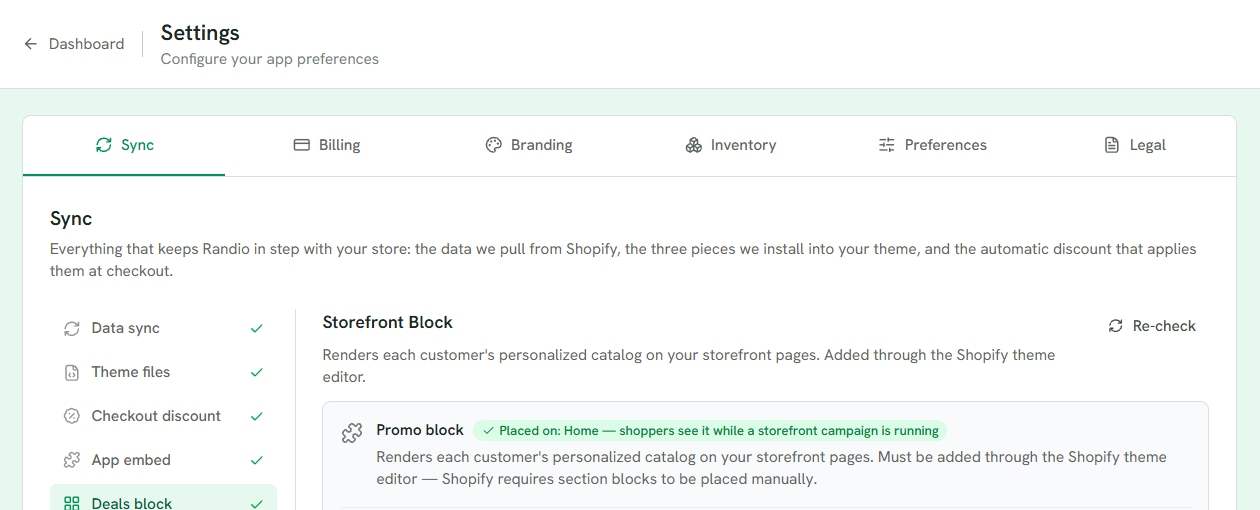
1 Where the block was detected. Below it, Verify block placement loads a page you paste and checks the block is really on it.
2 Re-check after saving the theme.
What visitors see
The block shows that visitor's catalog: their products at their prices. Cards link to the full catalog page. In Logged In mode a visitor who is not signed in sees a login prompt instead of offers; in Guest mode visitors who are not signed in get offers directly. See Guest visitors.
While a page stays open the block re-checks its catalog about every half minute for the first ten minutes, so a product swapped mid-run shows up without a reload. A new run is picked up when the old one ends or when the visitor returns to the tab.
The theme editor holds the block's layout only: its width (automatic, the theme's content width, or full width), the space above and below it, and its top, bottom and side spacing. Its colours, fonts and card design come from the Storefront Block tab of your template: display format (grid or featured), products per page, card size, the timer bar, a View collection button, and the wording of the login prompt.
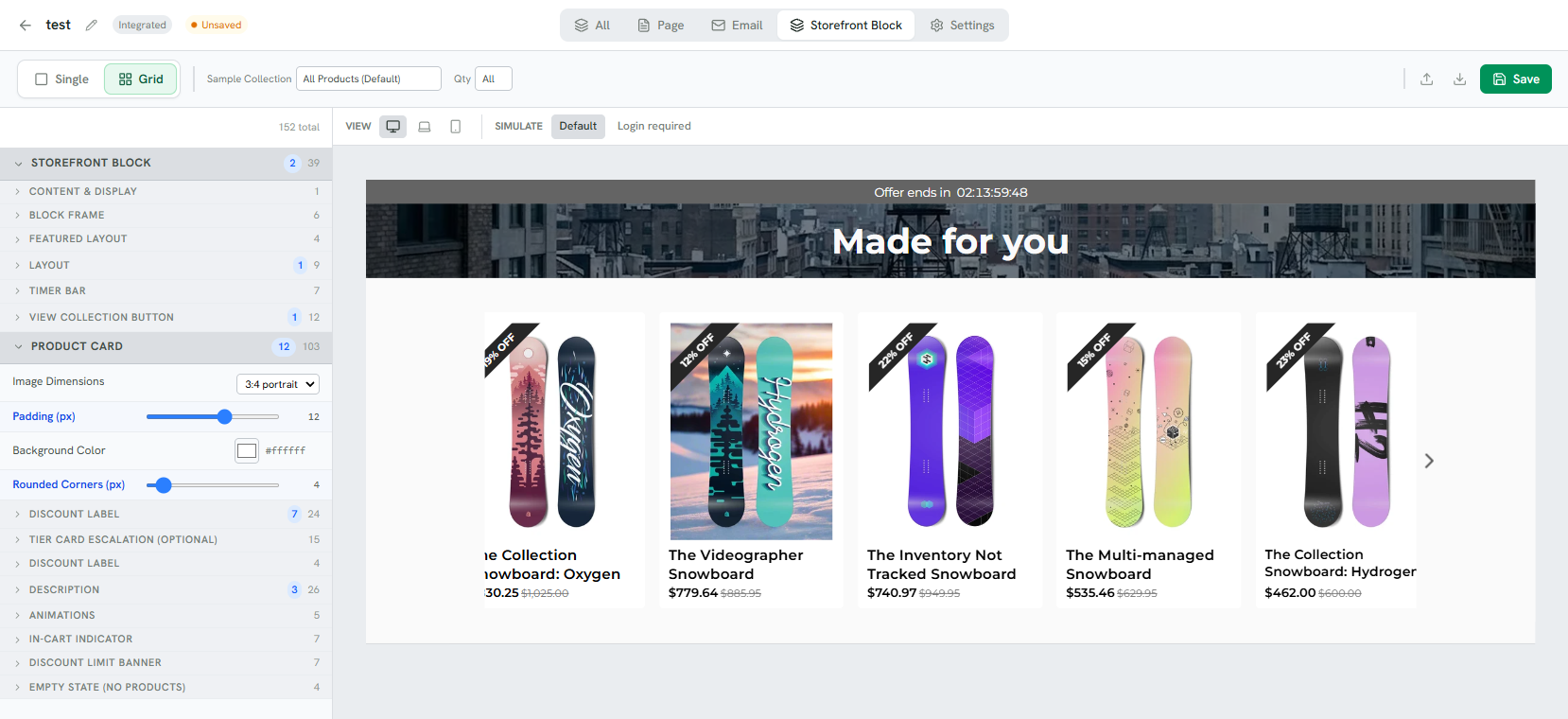
1 Simulate the block as a signed-in visitor or as one who must log in first.
2 The block with its timer bar, cards and discount ribbons.
3 Layout, timer bar, View collection button, cards, login prompt wording and the empty state.
The app embed
The block shows offers; the cart app embed makes them apply. It is a separate switch in the theme editor: open the puzzle-piece icon (App embeds) in the left sidebar, turn on Randio Cart Integration, and save. Settings → Sync → App embed shows whether it is detected. With it off, the block stays hidden and a campaign cannot go live. See Cart and checkout.
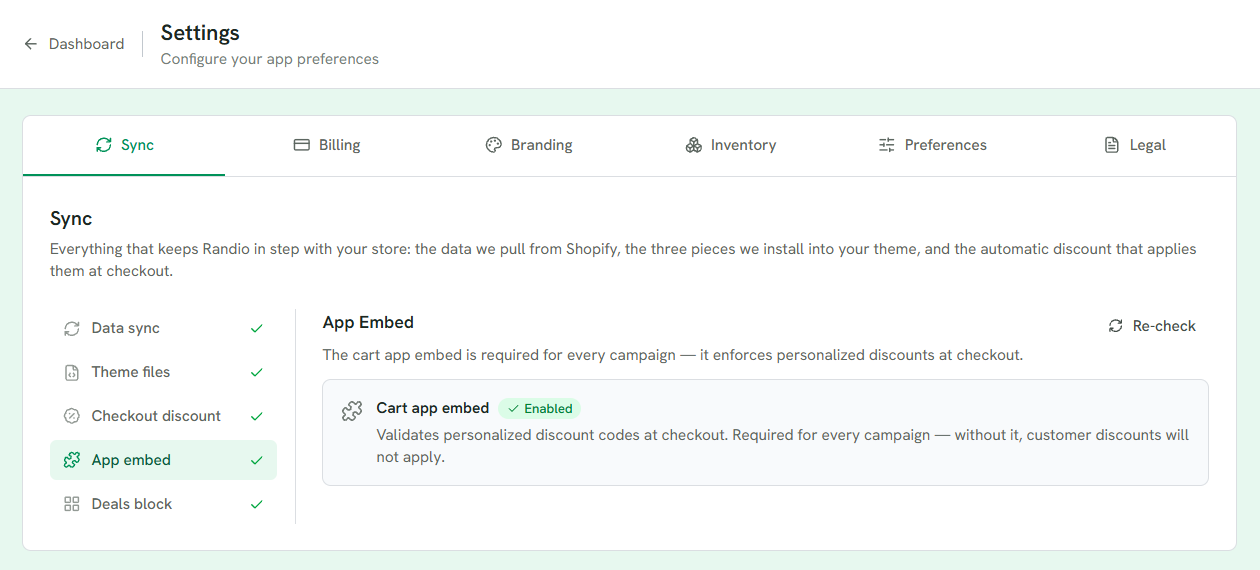
1 Enabled or not; with it off, nothing applies at checkout and a campaign cannot go live.
2 Re-check after saving the theme.
Related: Catalog page layouts, the article Where customers see their catalog.